When SSIS Packages Can’t Access Windows Folders in SQL Server — Why PROXY Is Often the Real Solution
A Very Common Problem in SQL Server Environments
If you have worked with SSIS packages in SQL Server, you have probably faced a very frustrating situation at least once.
Everything works perfectly when you run the package manually.
But when the package runs through SQL Server Agent, suddenly you start seeing errors like:
- Access Denied
- Cannot access file path
- Permission denied to network share
- Unable to read or write files
This situation is extremely common in environments where SSIS packages need to:
- read files from Windows folders
- write files to shared directories
- move files across servers
- execute operating system commands
And many professionals initially try the wrong solution:
Giving excessive permissions to the SQL Server service account.
This approach is dangerous and often unnecessary.
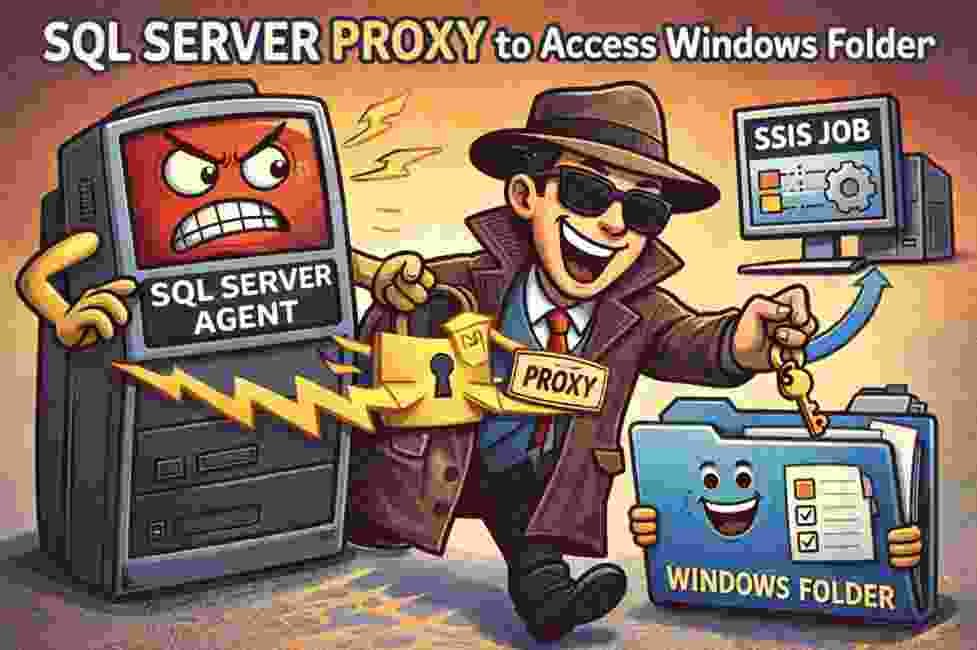
The correct and safer solution in most cases is using SQL Server Agent Proxy Accounts.
Why This Problem Happens
When a job runs in SQL Server Agent, it does not necessarily run under your user account.
Instead, it runs under the SQL Server Agent service account.
This account may not have permissions to:
- access Windows folders
- access network shares
- run operating system commands
- execute SSIS packages that interact with the OS
That is why packages work when executed manually but fail when executed as a scheduled job.
What Is a Proxy in SQL Server?
A Proxy in SQL Server Agent is essentially a mechanism that allows a job step to run under a different security context.
Think of it as a controlled identity delegation mechanism.
Instead of granting broad permissions to everyone or to the SQL Server service account, you create a dedicated identity with only the permissions required for the specific task.
Then SQL Server Agent uses that identity only when necessary.
This provides both:
- better security
- better control over job execution
Real Example: SSIS Package Accessing a Network Folder
Imagine an SSIS package that needs to read files from:
\\FileServer\ImportFiles\
If the SQL Server Agent account does not have permission to access that folder, the job will fail.
Instead of modifying the service account permissions, the correct approach is:
- Create a Windows account with the required folder access.
- Create a SQL Server credential using that account.
- Create a proxy mapped to that credential.
- Configure the job step to run using the proxy.
This way, only that specific job uses those permissions.
Step 1 – Create a Credential
The credential stores the identity that SQL Server will use.
Example:
CREATE CREDENTIAL [MyCredential]
WITH IDENTITY = 'DOMAIN\FileAccessUser',
SECRET = 'StrongPassword';
This Windows account should have the required permissions to access the file system.
Step 2 – Create the Proxy
Now we create the proxy that will use the credential.
EXEC msdb.dbo.sp_add_proxy
 @proxy_name = 'SSIS_FileAccess_Proxy',
 @credential_name = 'MyCredential';
This proxy acts as the bridge between SQL Server Agent and the Windows account.
Step 3 – Grant the Proxy Access to a Subsystem
SQL Server Agent jobs support multiple subsystems such as:
- CmdExec
- SSIS
- PowerShell
- ActiveX
- Replication
If the job step runs an SSIS package, we associate the proxy with the SSIS subsystem.
Example:
EXEC msdb.dbo.sp_grant_proxy_to_subsystem
 @proxy_name = 'SSIS_FileAccess_Proxy',
 @subsystem_id = 11;
Subsystem ID 11 corresponds to SSIS.
Step 4 – Use the Proxy in the Job Step
Now open the SQL Server Agent job and configure the step.
In SQL Server Management Studio:
SQL Server Agent
   → Jobs
      → Job Step
         → Run As
Select the proxy you created.
Now the job step will run under the permissions of the proxy account.
Why Using Proxy Is the Best Practice
Using proxies brings several advantages.
Security
You avoid granting excessive permissions to:
- SQL Server service accounts
- developers
- administrators
Permissions remain restricted to specific tasks.
Better Access Control
Different jobs can use different proxies.
For example:
- one proxy for file transfers
- one proxy for SSIS packages
- one proxy for PowerShell scripts
Compliance and Auditing
Security teams often require clear control over who can access file systems or execute commands.
Proxies allow better governance.
A Mistake I Still See in Many Environments
In many companies, instead of configuring proxies properly, administrators simply grant SYSADMIN permissions or modify service accounts.
This creates major risks such as:
- excessive privileges
- security vulnerabilities
- difficulty auditing access
- operational risks
Using proxies correctly avoids all of these problems.
Final Thoughts
If you work with SSIS packages, SQL Server Agent jobs, or automation scripts, understanding proxies is essential.
Proxies allow you to:
- control execution permissions
- isolate security contexts
- avoid unnecessary elevated privileges
- run jobs safely across Windows resources
After many years working with SQL Server environments, I can say this confidently:
A properly configured proxy can save hours of troubleshooting and prevent major security issues.
🚀 Ready to boost your career in data?
👉 DBAcademy – DBA & Data Analyst Training
Over 1,300 lessons and 412 hours of exclusive content.
Includes subtitles in English, Spanish, and French.
🔗 https://filiado.wixsite.com/dbacademy
💡 Start learning today and become a highly in-demand data professional.
Share this content:



Post Comment